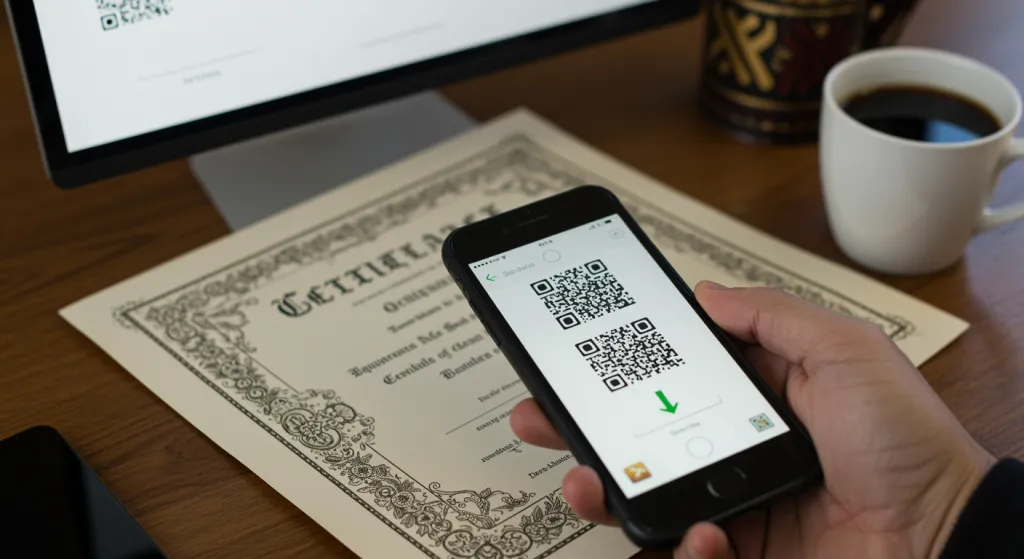
How to Add a QR Code to a PDF Certificate the Right Way

A practical guide to adding a QR code to a PDF certificate, the pitfalls to avoid, and how to make the code genuinely verifiable.
Adding a QR code to a PDF certificate sounds simple, and the placement part is. The harder, and more important, question is what the code points to, because that is what decides whether the QR code actually proves anything.
First decide what the code should do
Before touching design tools, be clear on the goal. A QR code on a certificate should let anyone scan it and confirm the credential is genuine. That means it must resolve to a verification page tied to an authoritative, tamper-evident record, not just a copy of the file. If the code only opens the same PDF a forger already holds, it adds the look of security without any of the substance.
The manual way, and its limits
You can generate a QR code from a verification URL using any QR generator, then drop the resulting image into your PDF with a design or PDF editing tool. Place it in a corner, size it so it scans cleanly from print, and export. This works for a one-off, but it has real drawbacks: the code is only as trustworthy as the page it points to, every certificate in a batch needs its own unique code and link, and doing that by hand for hundreds of recipients is error-prone and slow.
Common mistakes to avoid
- Pointing the code at the PDF itself. A scan that just reopens the document proves nothing about authenticity.
- Reusing one code for everyone. Each certificate needs a unique code so verification returns that specific holder's record.
- Making the code too small or low-contrast. It must scan reliably from both print and screen, with quiet space around it.
- No fallback. Pair the QR code with a short human-readable code so the credential is still checkable without a camera.
- No signing behind it. Without a signed record, the verification page can be faked as easily as the certificate.
What makes a QR code trustworthy
The QR code is only the doorway. Trust comes from what is behind it: a verification page that proves the credential's data has not been altered and confirms who issued it. The strongest approach signs each certificate's data fields at the moment of issue, so the page can show that the name, qualification and dates are exactly as recorded, and any edit breaks the proof. The QR code's job is simply to carry the scanner to that page quickly.
Doing it at scale
If you are issuing more than a handful of certificates, generating and placing unique codes by hand is not viable. You want a system that takes your recipient data, creates a uniquely coded and signed certificate for each person, and embeds the QR code automatically. That removes both the manual labour and the risk of mismatched codes.
The simpler path with QRCertificates
Rather than bolting a QR code onto a PDF after the fact, QRCertificates builds it in from the start. You design your certificate with a drag-and-drop template, import recipients from a CSV, and each generated certificate carries its own QR code and short code that open a public verification page, on any device, with no login or app. Every credential is signed with Ed25519 over its canonical data fields, so the QR code resolves to a record that fails verification the instant anything is altered. It is the difference between a QR code that looks reassuring and one that genuinely proves a certificate is real.