
Certificate Scanner: How to Scan and Download a Certificate from a QR Code
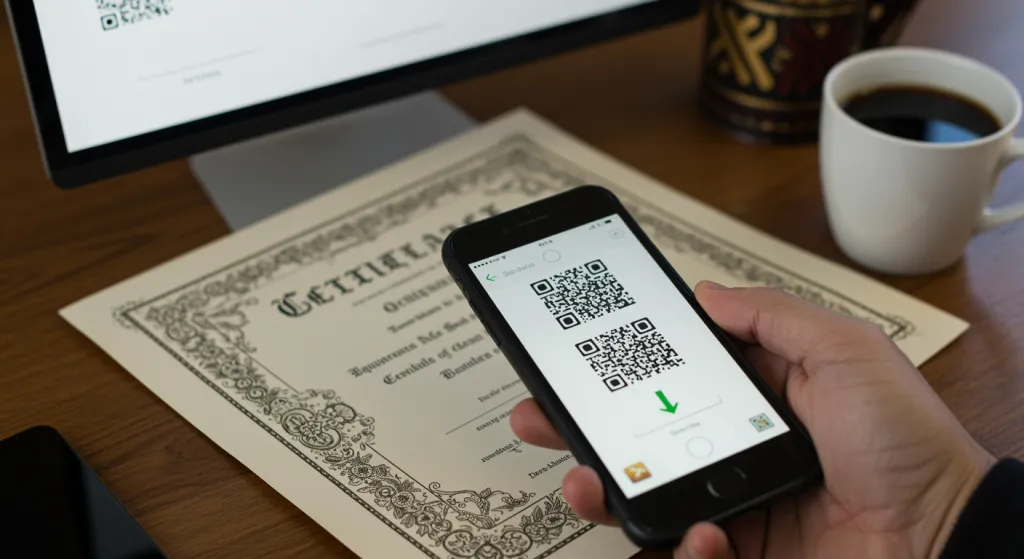
Wondering how to use a certificate scanner, or how to download a certificate from a QR code? You already own the only scanner you need. Your phone. Here is exactly how to scan, verify and save a certificate.
People search for a "certificate scanner" expecting to need special software. Good news: you don't. If a certificate was issued properly, the QR code is the scanner interface and your phone's normal camera is the scanner. This guide covers how to scan a certificate QR code, what a genuine result looks like, and how to download the certificate from its QR code.
How to scan a certificate QR code
- Open your phone's camera (or any QR-scanning app). On modern iPhones and Android phones, the built-in camera reads QR codes with no extra app.
- Point it at the QR code on the certificate, usually in a corner. Hold steady until a link notification appears.
- Tap the link. It should open a verification page on the issuer's website, not a random domain and not a blob of raw text.
- Read the result. A trustworthy page states clearly whether the certificate is authentic and unaltered, and shows who issued it.
If your camera doesn't scan QR codes automatically, any free QR scanner app works, or you can type the certificate's short code into the issuer's verify page by hand.
How to download a certificate from a QR code
If you are the recipient and want to save your own certificate, the QR code is often the fastest route:
- Scan the QR with your phone camera.
- On the verification page, look for a Download or Save PDF option, a well-built page offers the official copy right there.
- Save it to your device, or share the verification link directly (a live link is more trustworthy to employers than a forwarded file).
Note: downloading the certificate and verifying it are different actions. The download gives you the document; verification proves it is genuine. Always keep the verification link, not just the PDF, the link stays checkable, a saved file does not.
What a genuine scan result looks like
- It opens a page on the issuer's own domain.
- It says more than just "valid": it names the issuer and confirms the data hasn't changed.
- Altering a single character in the certificate would make it fail, because the check is based on a cryptographic signature over the data.
Red flags when scanning
- The QR opens plain text (a name and date) instead of a verification page. That proves nothing.
- The page is on an unrelated domain with no issuer detail.
- There is no QR or code at all, just a PDF with no way to check it.
Scan, verify and download with QRCertificates
Certificates issued through QRCertificates are built for exactly this. Every certificate carries a QR code and a short code that open a branded, login-free verification page. Anyone can scan to confirm authenticity, the recipient can download the official copy, and the record is Ed25519-signed so a tampered version is rejected. No certificate scanner app, no account, just a phone camera. Verification is always free.

